Editing instructions for UCAs
August 13, 2021 (07:59:49 AM)
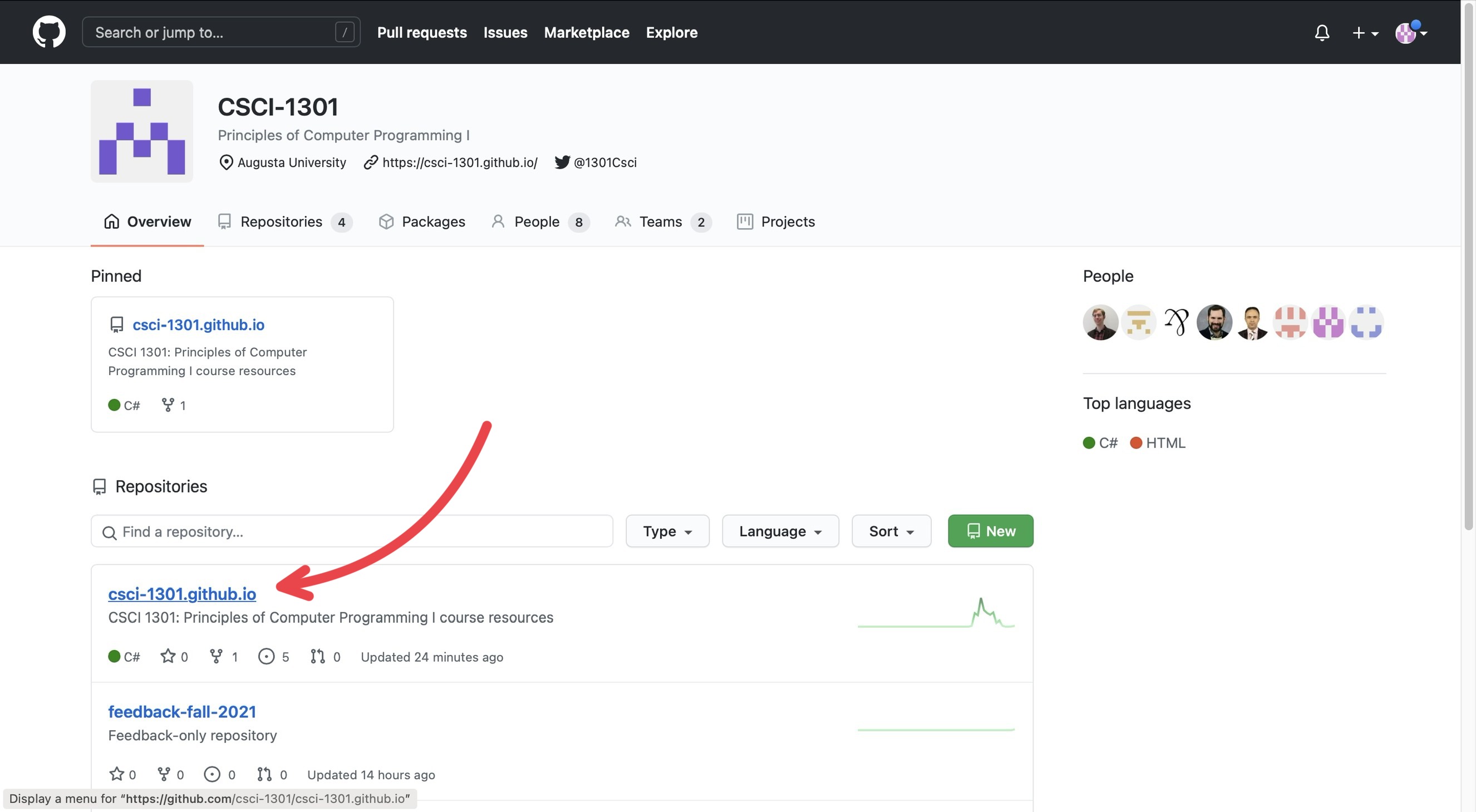
GitHub is separated into many “repositories”. The csci-1301.github.io contains most of the resources that will be used (so it will be where you will navigate to the most), while the feedback-fall-2021 contains feedback submitted by students/users.
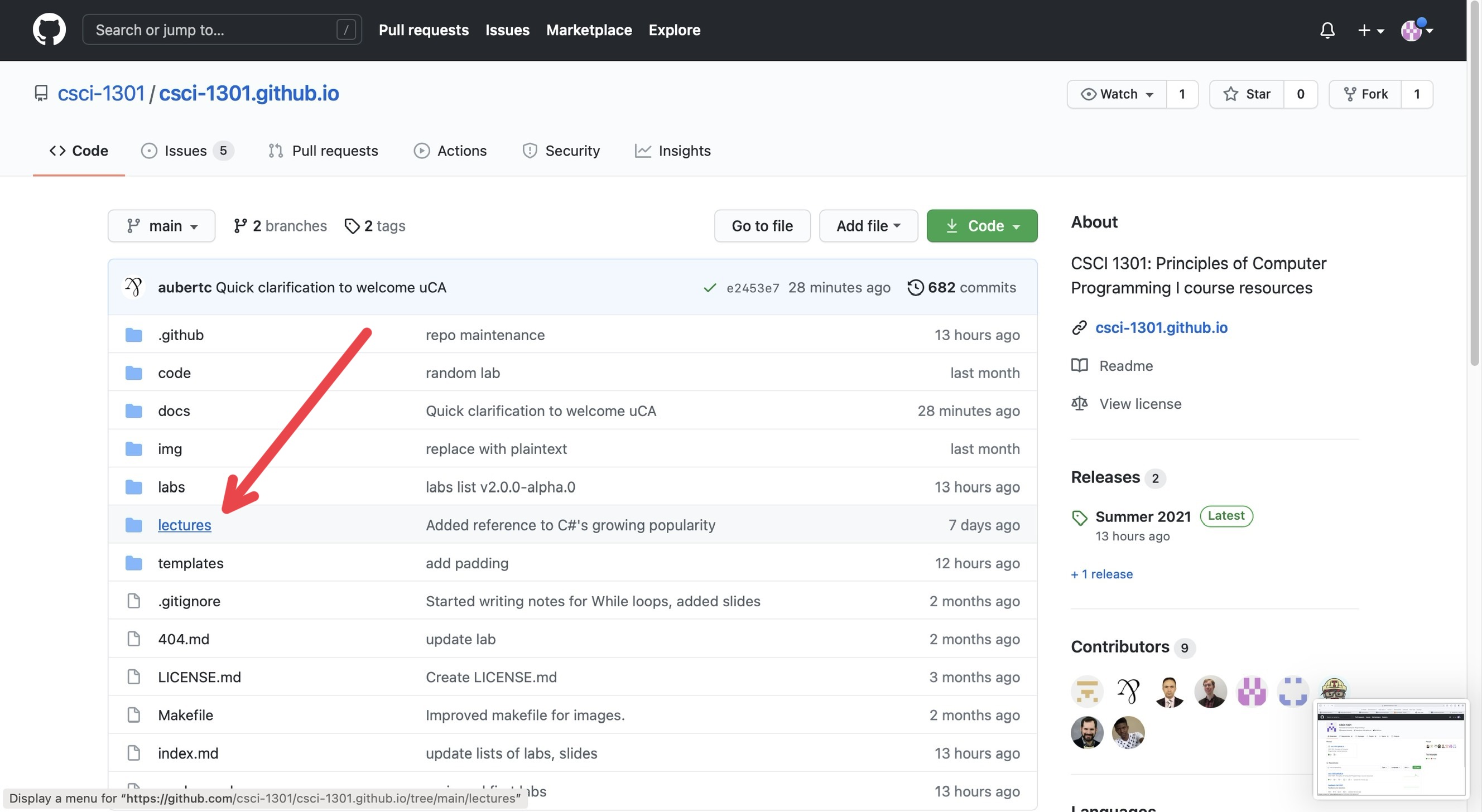
Under the Code section (next to Issues, Pull Requests, Actions, etc.), you will find various folders containing documents for the website. Typically, if there is some error or mistake in the lecture notes, so that will be where you will navigate to the most.
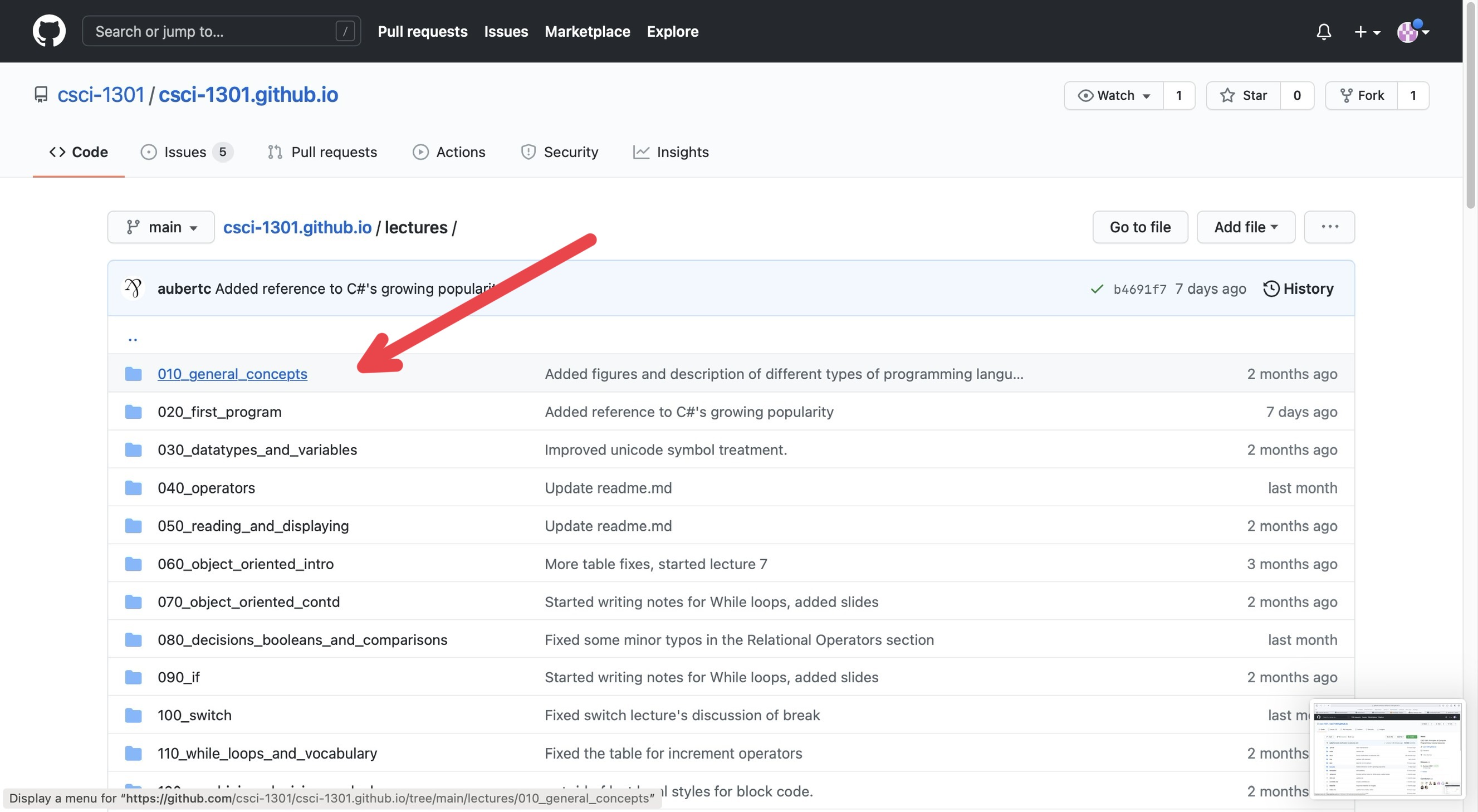
For this example, I just clicked on the first chapter, “General Concepts”.
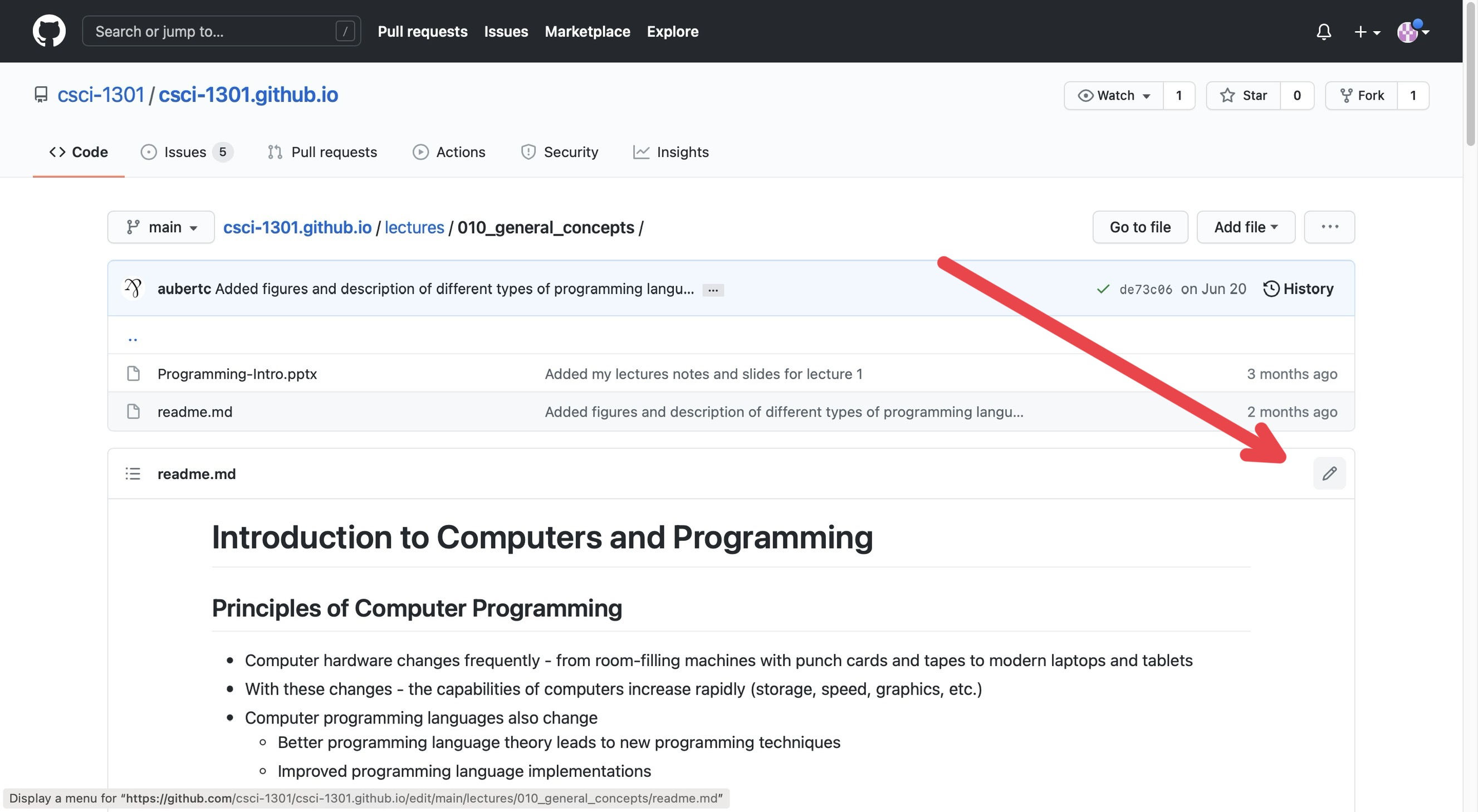
On this page, you can see the edit history of that specific document you clicked on. In the corner above the document and below the edit history, there is a pencil icon that will put you into editing mode for that document.
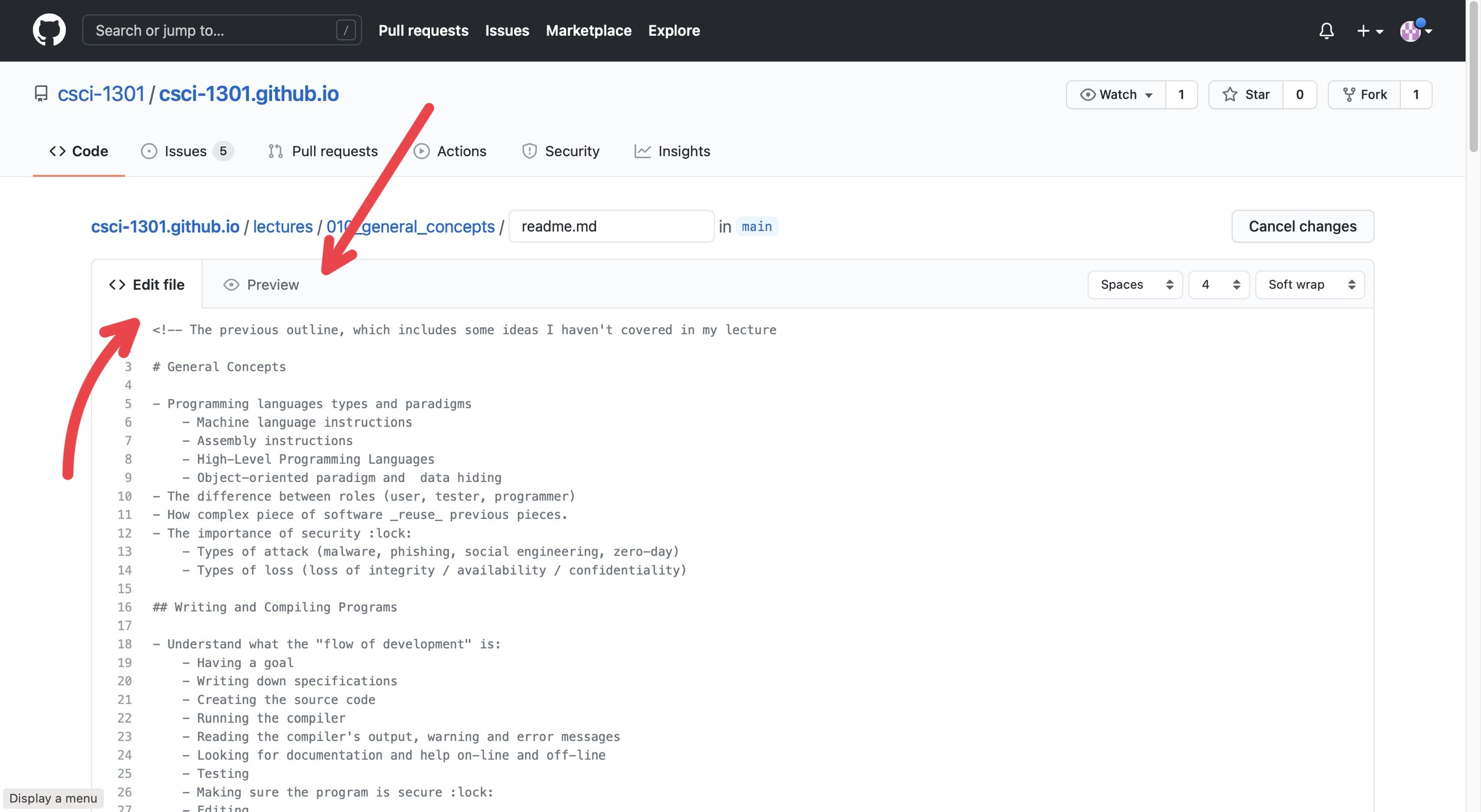
On this page, you will see the document in strange formatting (the formatting is called Markdown) with two sections at the top of the document: Edit file and Preview. If you have Edit file selected, then you will see the “code” version of the document whereas if you click on the Preview button, you will see the document in its “final” form, or how the website users should see it, without the “code”. To edit, make sure you have Edit file selected.
- For a quick syntax guide in Markdown, I recommend this website: https://www.markdownguide.org/basic-syntax/
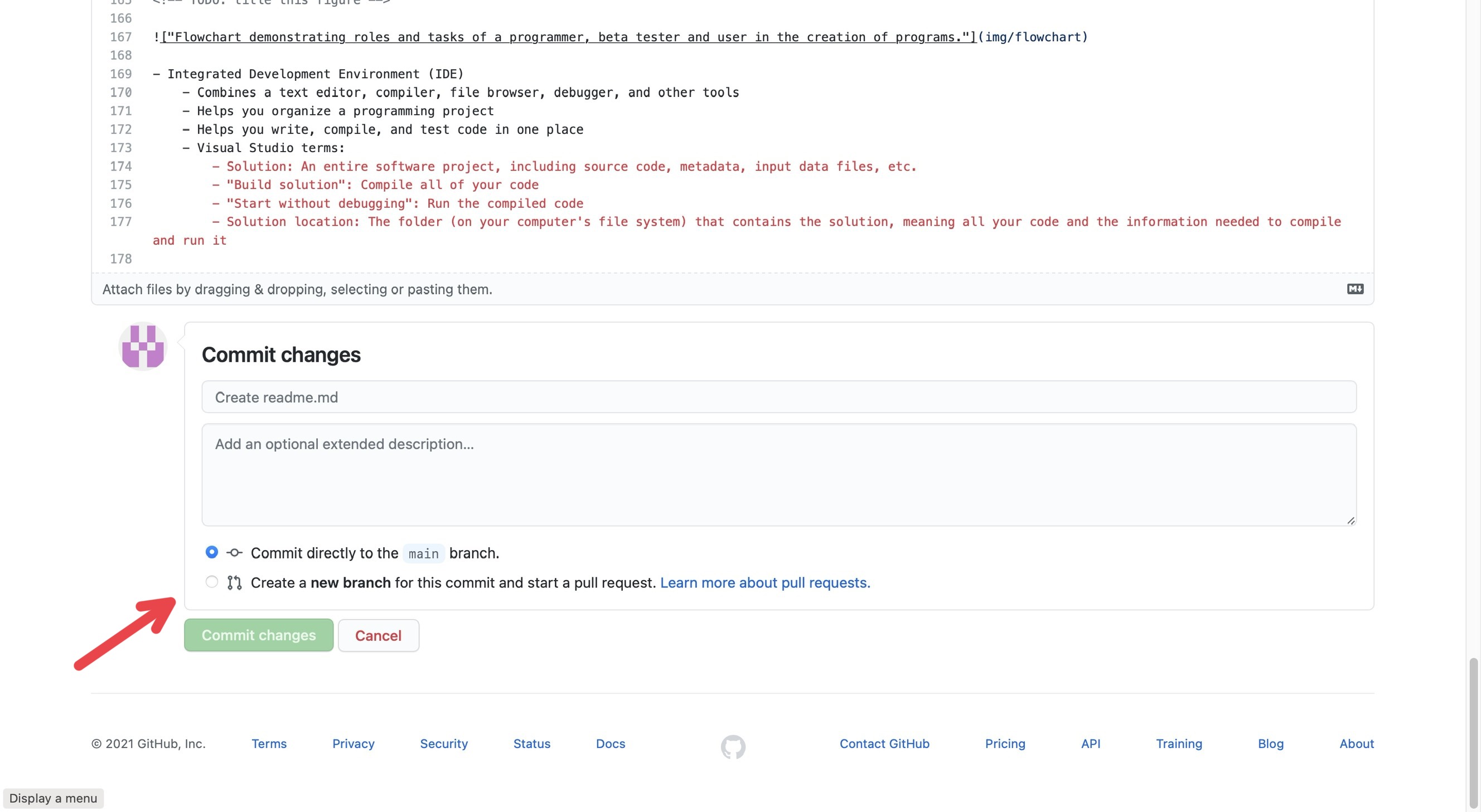
Once you have made the edits you wanted, you need to “commit” them; just like how you may write a paper, you need to submit it to the professor for them to see it. At the bottom of the page, there is a header box and a description box for you to describe what you did so others will know the changes you did (you don’t need to go into every detail; just describe it generally, like “I fixed grammatical issues” or “Fixed code error”). There is also two buttons: Commit directly to main branch and Create a new branch for this commit and start a pull request.
Commit directly to
mainbranch submits your edits directly into the document.Create a new branch for this commit and start a pull request creates a “pull request” (which can be found in the Pull Requests tab at the top of the page) which essentially notifies others “you edited this document and you want them to check it”. Others can check the changes you make, improve them, change them, and can submit them for you.
As a UCA, I would recommend just sticking to Create a new branch for this commit and start a pull request so others can double check your edits.